Experience swift and secure communication with your team via our chat system on each individual folder or file. Discuss content and exchange requests through this channel. In this article, you will learn how to use the chat, how to mention users and where you can find your aggregated messages.
Using the chat
| 1. Navigate to your data collection. |
| 2. Open the detail screen of a folder or file by clicking on it. Each file and each folder present in the Workspace has it's own chat available. |
|
3. Click on the Chat icon at the right hand side of the detail screen. This will automatically expand the chat dialog where you can communicate with your team. |
|
4. You can also access the chat directly via the chat icons displayed in the data collection. |
Mentioning users
In your Workspace, you can mention users in a chat by adding the @-sign. The message center will have an @-indication of any mentions that happened. Mentions will trigger an e-mail notification within the next hour. The overview of all of the chats can be found within the Dashboard of the Workspace and the 'Notifications' section on the left-hand side.
Dashboard chats overview:
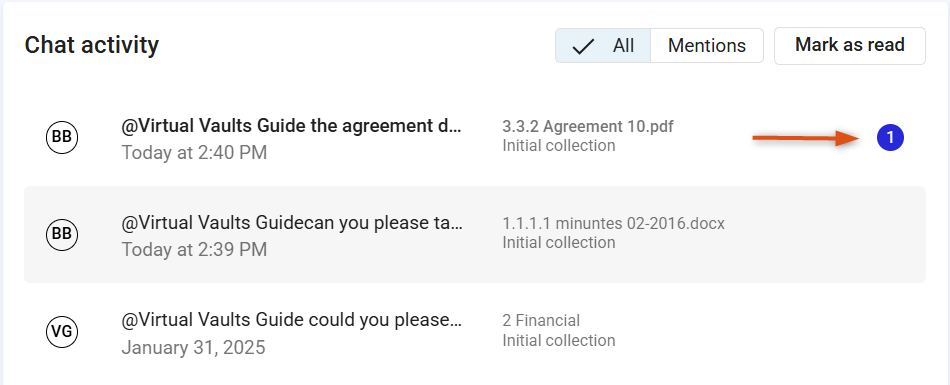
Notifications chats overview:
Every user will have access to the Notifications section in the bottom left-hand corner. The amount of new chat messages will be displayed in a blue circle.
Visit Notification system if you want to learn more about how notifications work in Workspace.